 AntennaHead
A macOS app for software-defined-radio streaming. It tunes an RTL-SDR USB device, demodulates the signal, and serves audio plus a full control UI to any browser on your network.
You don't need an RTL-SDR radio for
everything, though. Several functions work without one, especially on
the Devices page: stream any Core Audio input (a microphone or
line-in), have Text to Speech read .txt files from a
folder through the audio pipeline, or open ControlBooth. An RTL-SDR
radio is only needed to tune over-the-air stations.
What it does
Tune & demodulate
RTL-SDR wide-band FM (mono/stereo), narrow-band FM, AM, airband, and shortwave, with tuner-gain, sample-rate and squelch controls.
Stream anywhere
An embedded server (LiveAudioServer) puts out AAC/HLS over HTTP and HTTPS — listen on a phone, tablet, laptop or smart TV.
Favorites & scanning
Save stations, group them into categories, and run high-speed scans across a category to stop on activity.
Not just the RTL-SDR
Stream a Core Audio input, bridge Gqrx's UDP output, or speak a folder of text files through the same pipeline.
Record
Capture the live AAC stream to a file and play recordings back — or fast-download them — from the Recordings screen.
Spatial audio & filler
Per-listener azimuth / distance / reverb, plus an idle "filler" loop with periodic spoken station announcements.
The web UI, live
This is the actual front end from
AntennaHead/Web/, served here as a static preview: the
template tokens and server endpoints are filled by a small mock layer,
so navigation, the tuner keypad, category tables and settings all work,
but there is no live audio. Anything that needs a real radio shows a
short "preview only" note.
Try these
- Radio → Tuner → Wide-band FM — tap the digits, use +/− to change frequency.
- Radio → Favorites and Categories — open a sample station or group, then try Edit and Category Settings.
- Radio → Listen to Gqrx — the Gqrx remote-control panel: filter width, audio gain, squelch, mode, and the bookmarks list.
- ControlBooth — the remote-control pages: pipelines, AntennaHead Radio, the AirPlay receiver, and the dsd-neo scanner.
- Devices → Text to Speech — a sample page for speaking text through the audio pipeline, with the voice-markup guide.
- Now Playing (top-right button) — canned status plus the spatial-audio sliders.
- Settings — AAC bitrate, colour scheme, tap-feedback toggle.
- Recordings and Info.
Static preview · no radio connected
On Apple TV and Apple Watch
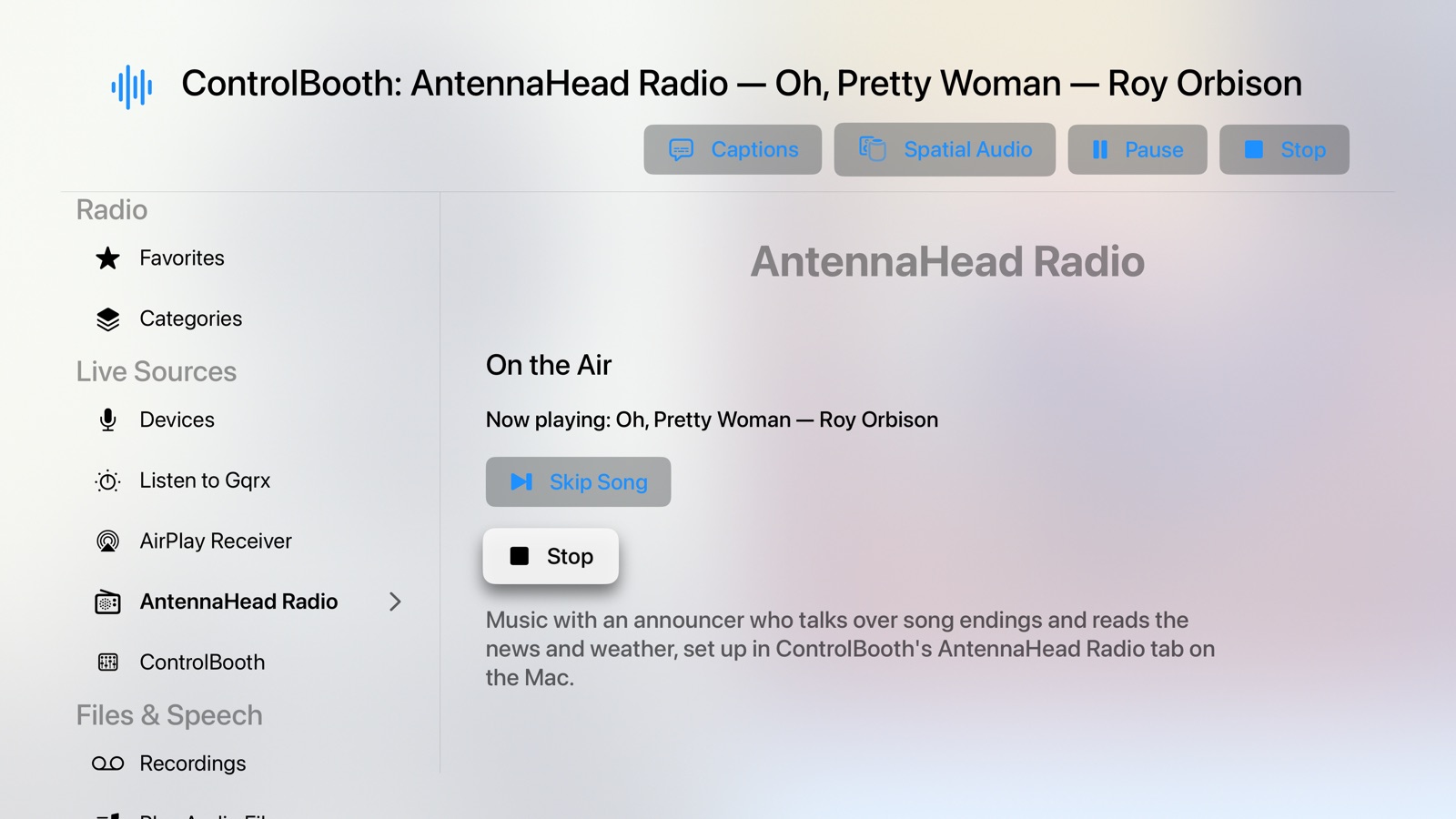
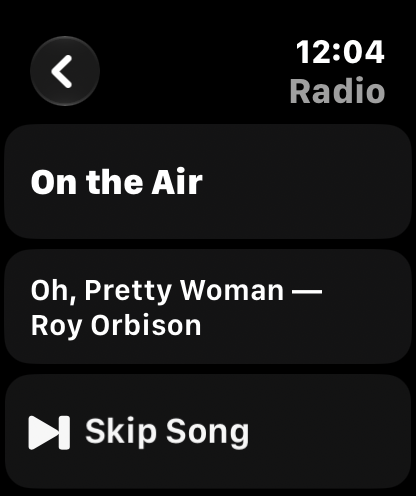
Native apps for Apple TV and iPhone & Apple Watch play the stream and control the same server. Here, AntennaHead Radio is on the air. Skip Song rings a gong, fades the song out and fades the next one in.
Screen recordings
Short captures of the UI driving a live stream in the iOS Simulator.
Using HTTPS
Plain HTTP is fine on a home network, and it's the default. If you want the connection encrypted, for example when you turn on AntennaHead's web login, turn on HTTPS in AntennaHead's Security tab. AntennaHead then also listens for HTTPS, on port 8094 unless you change it in Configuration.
In a web browser
AntennaHead can generate its own self-signed certificate (Security › Load / Generate Self-Signed Certificate). Browsers warn about a self-signed certificate the first time, and usually let you continue to the page.
In the iPhone, Apple Watch and Apple TV apps
The native apps (iPhone & Apple Watch, Apple TV) only accept a certificate the device already trusts, so the self-signed one won't work. Use a certificate from a trusted authority, such as Let's Encrypt or Tailscale, and load it as a User-Supplied Certificate (.p12) in the Security tab.
Connect by name
Enter the name on the certificate and the HTTPS port, e.g. mac.example.com:8094, not the Mac's IP address. The name has to reach the Mac wherever you listen: at home, and over your VPN if you use one. A .local name only works on your home network.
Turn it on in each app
iPhone: Use HTTPS in the server's settings. Apple Watch: it takes the iPhone's setting, or use the HTTPS switch when adding a server on the Watch. Apple TV: Use HTTPS on the connect screen. If a device doesn't trust the certificate, the apps won't connect: the Apple TV app says the certificate isn't trusted, and the iPhone app says it can't reach the server.
Build it
Requires macOS 14+, Xcode 15+, and (optionally) an RTL-SDR USB radio. Swift Package Manager resolves everything on first build.
github.com/
Latest release: v0.3.1-alpha (pre-release) — direct download (.zip, signed & notarized)